The studio
Your manuals in one place, the two ways to start one, and where each editor opens from.
The studio is where your manuals live. Open it from Studio in the site's account menu, or go straight to /app/studio. Each manual becomes a deck of cards you can publish to the glasses.
Click or tap any picture on these pages to see it larger.
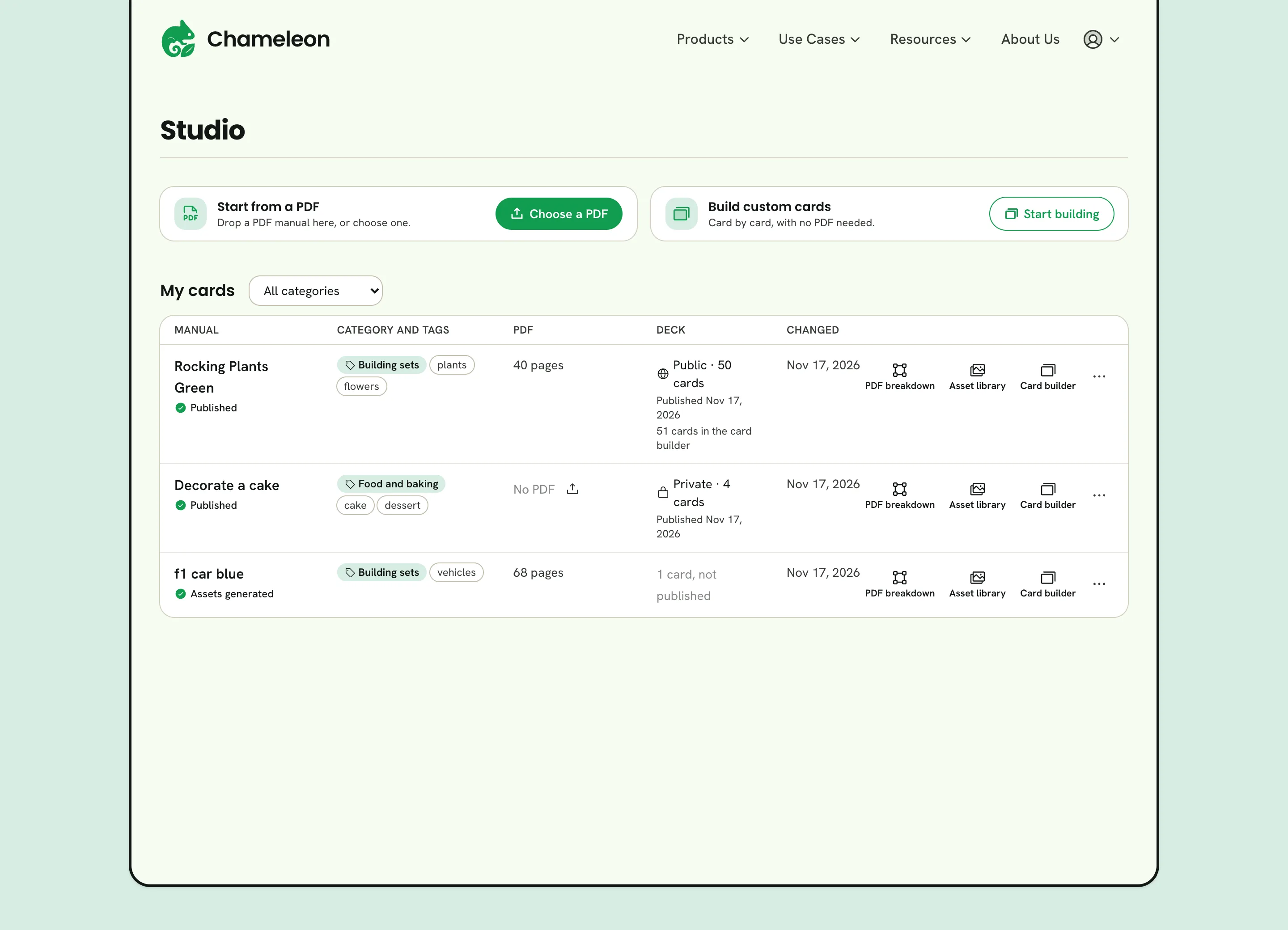
- 1Start from a PDF
- 2Build custom cards
- 3Filter by category
- 4Your manuals
- 5Account menu
Start a manual
There are two ways to start, depending on whether you have a PDF. Until you have a manual they are two large cards; after that they are a slim row above your list, and on a phone two buttons, From a PDF and Custom cards.
From a PDF
Drop a PDF manual on Start from a PDF, or click Choose a PDF. A dialog opens with the title filled in from the PDF; change it if you like, pick a category, and click Create manual.
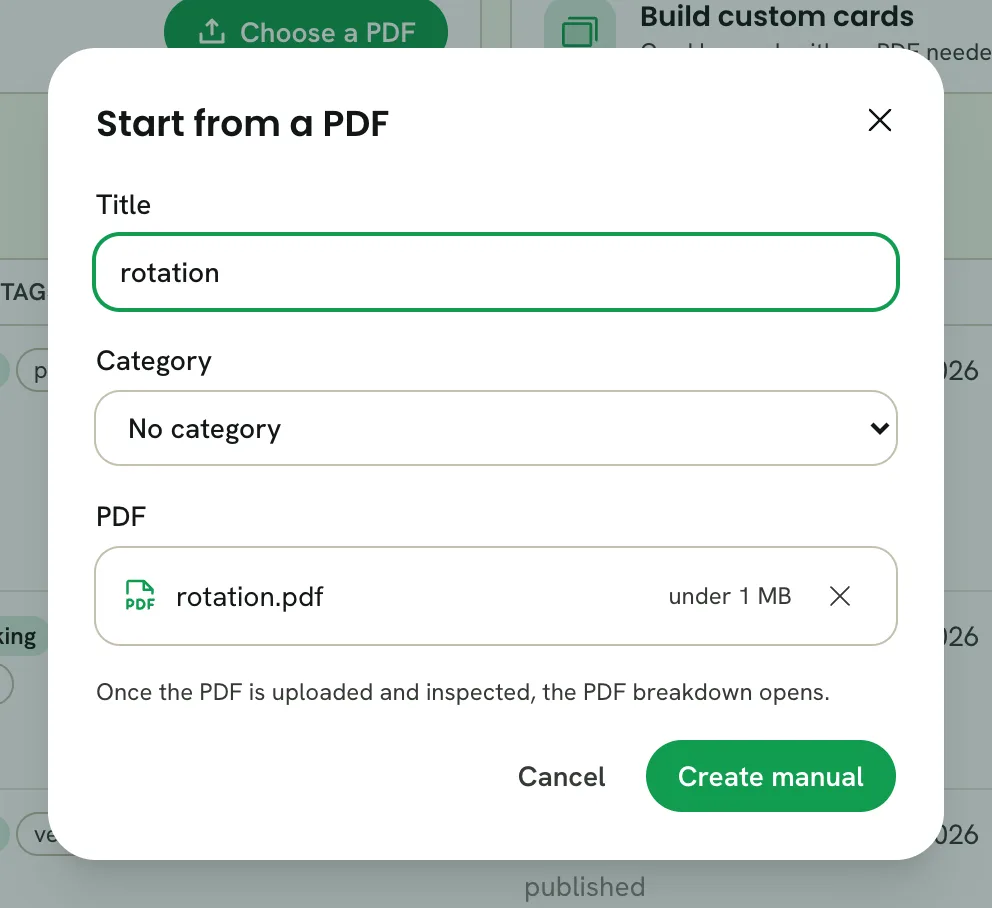
- 1Title, filled in from the PDF
- 2Create manual
The PDF uploads and is checked, then the PDF breakdown opens so you can label its pages.
As custom cards
No PDF? Click Start building under Build custom cards. Give the manual a title and click Create manual: the card builder opens on an empty card. You can upload your own pictures there, and add a PDF later.
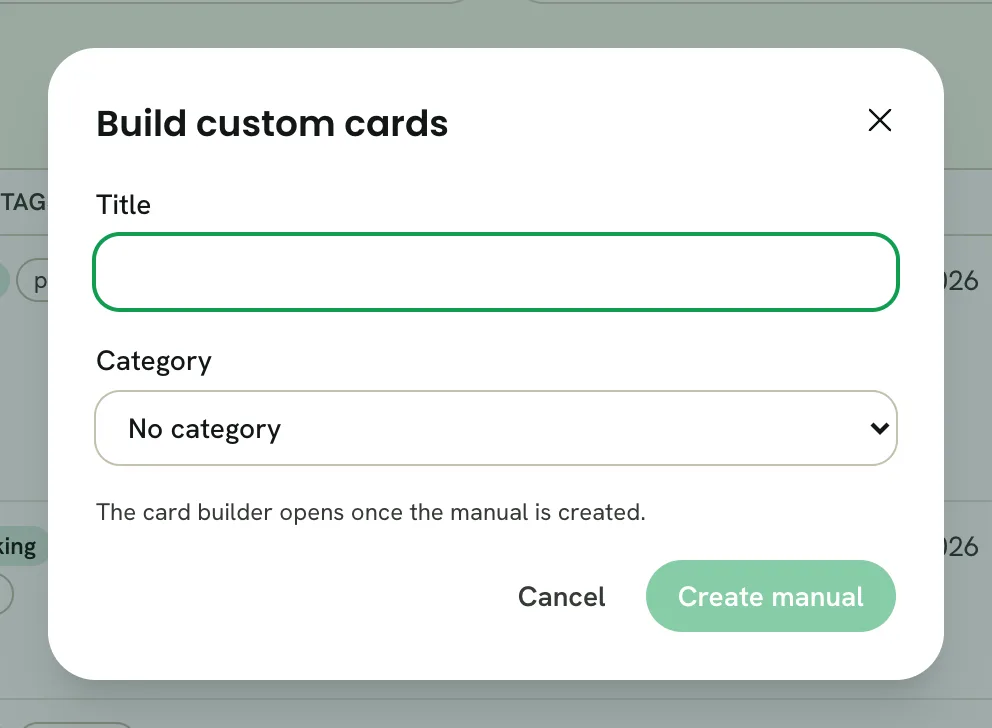
- 1Title
- 2Create manual
Your manuals
Each row in My cards is one manual. From left to right it shows the manual, its category and tags, its PDF, its deck, and when it last changed, then its editors and the More menu. On a screen too narrow for the table, each manual is a card with the same parts.

- 1The PDF
- 2The deck
- 3PDF breakdown
- 4Asset library
- 5Card builder
- 6More
- The PDF shows its page count, or No PDF with an upload button to add one later.
- The deck shows whether it's published, for whom, and when, and says so when the card builder holds more cards than were published.
- PDF breakdown, Asset library and Card builder open the manual in that editor.
- More (⋯) opens the manual's menu.
The manual's menu
More holds everything else you can do with a manual from the studio.
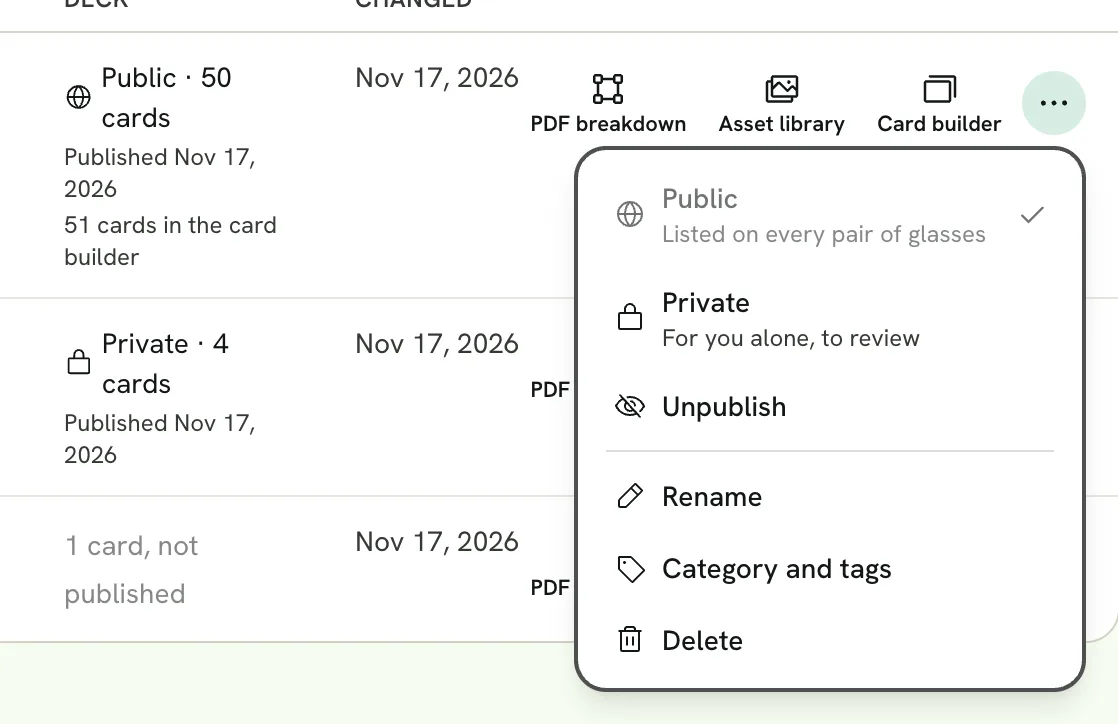
- 1Public: on every pair of glasses
- 2Private: for you alone
- 3Unpublish
- 4Rename
- 5Category and tags
- 6Delete
- Public and Private publish the saved deck, or change who sees a published one; the check marks how it's published now. Unpublish takes it off the glasses. Making a deck public and unpublishing it ask you to confirm. The card builder has the same choices, with a check of the deck first; see Publish.
- Rename and Category and tags open small dialogs; the change is saved when you confirm.
- Delete asks first, then removes the manual, its files and its published deck.
While a job is running on a manual, only its category and tags can be changed.
Find a manual
Choose a category in Show manuals in to list only its manuals, then turn its tags on to narrow the list further.
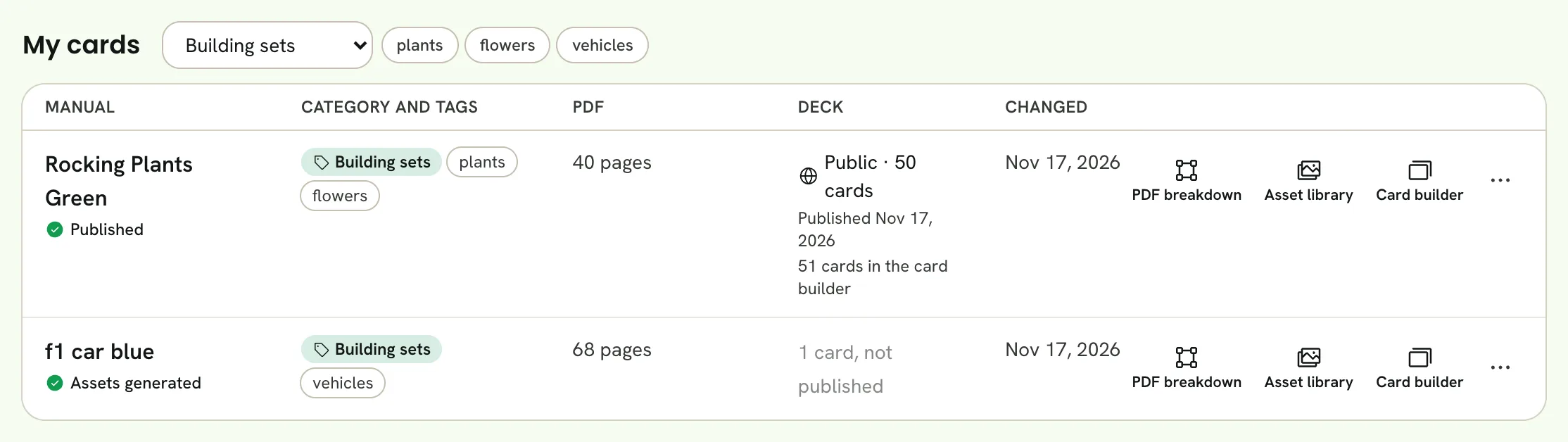
- 1Category
- 2Tags
Categories are set up by an administrator. Every manual can have one, and the tags it allows.