On a tablet or a phone
Where the studio's panes go on a smaller screen, and what a finger does in place of the mouse and the keys.
The studio is the same on a tablet or a phone as on a computer: the same manuals, the same editors, the same saving. It lays itself out for the width of the screen, and gives a finger larger controls than a mouse.
A tablet held sideways is wide enough for the layout the other pages show. Held upright, or on a phone, the panes move.
The studio
On a screen too narrow for the My cards table, each manual is a card: its name with More in the corner, its category and tags, its PDF and its deck, then its three editors. On a phone the two ways to start are two buttons, From a PDF and Custom cards.
The editors on an upright tablet
Your work takes the whole width, and the two side panes open when you want them.
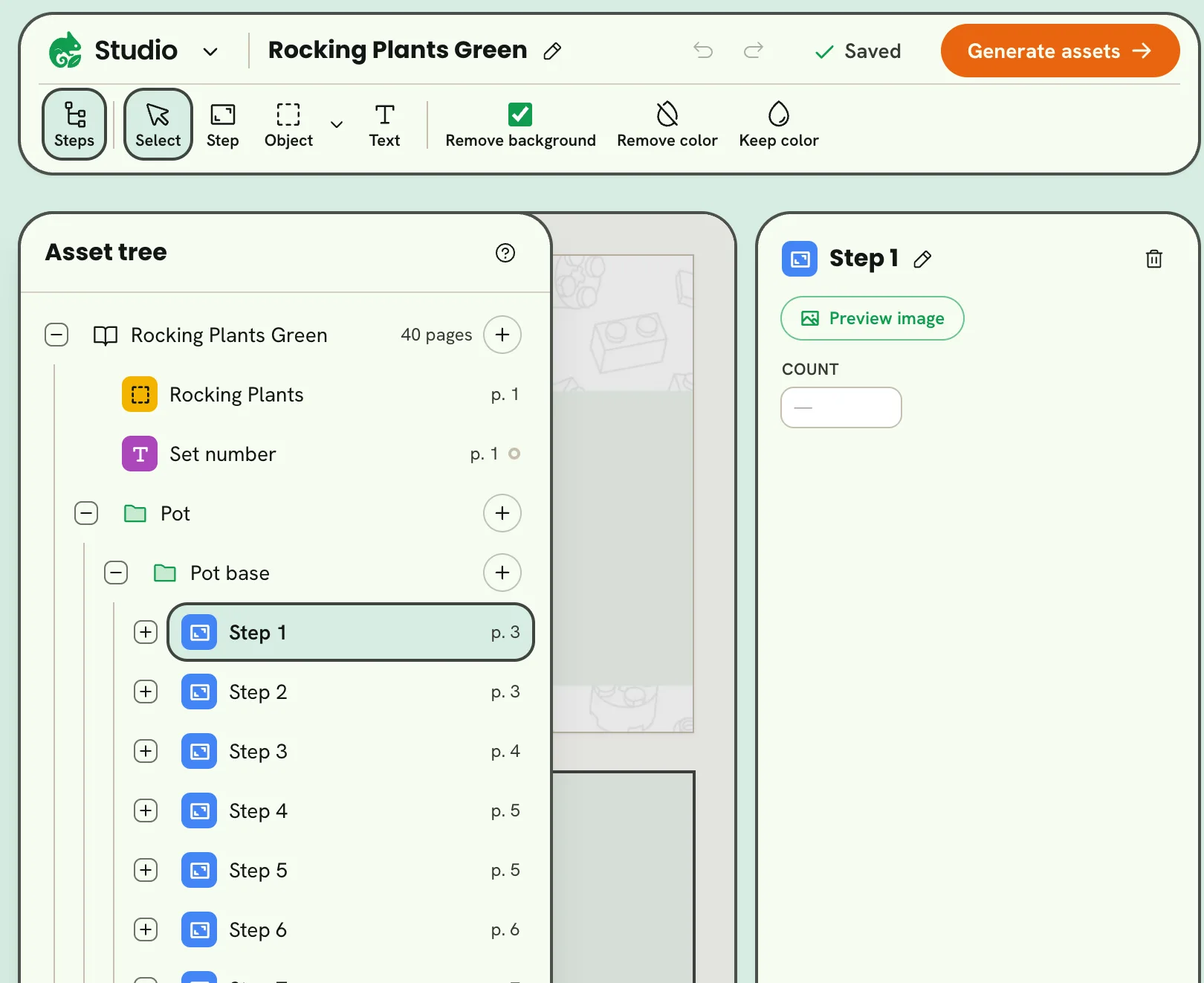
- 1Steps
- 2The asset tree
- 3What's selected
- The asset tree is a drawer over the left of your work. Steps opens it in the PDF breakdown and Assets in the card builder; a press outside it closes it.
- What you select shows in a column on the right, in the place of the deck or the pages rail, and goes when nothing is selected. In the card builder, Properties opens the column with nothing selected, for the card's own fill.
- Tools the bar has no room for are under More at its end.
The editors on a phone
Your work fills the screen, and everything else opens over it.
- 1Steps: the asset tree
- 2Pages
- 3Checks
- 4Preview image
- 5More
- The tools are in a bar along the bottom, with More at its end for the rest: the tools that don't fit, the checks, redo and save.
- The top bar keeps the way back, the manual's title, undo and the editor's main action.
- The asset tree and what's selected open as sheets that rise from the bottom. A sheet closes with its cross, or a press on the page behind it.
- In the card builder, the deck is a row above the tools, Place opens the asset tree, and a bar over the card names what's selected, with Edit, Duplicate and Delete.
- The asset library keeps Upload in its bar, with Continue to card builder across the bottom.
The PDF breakdown is for review
A phone has no room to draw on a page, so there the PDF breakdown is for looking over what's labeled. Go through the steps and the pages, rename what's there, correct a text's words, and open Preview image to look at a picture and fix it. Tap a region on a page, or its row under Steps, to open its card. Drawing, moving, reshaping and deleting regions need a tablet or a computer.
With a finger
One finger does what the tool in hand does, and two fingers always move and zoom the page or the card. What a mouse does with a key, a hover or a drag has a control on screen:
| With a mouse and keys | On a touch screen |
|---|---|
| Shift-click things on a card to select several | Tap one and rest a finger on each of the others, or turn on Select several and tap them |
| Double-click a text to type on the card | Double-tap it |
| Drag an asset from the tree onto the card | Choose it, then tap Place on card |
| Nudge with the arrow keys | Type X and Y in the selection's card |
| Drag a card along the deck | ⋯ on the card you're editing: Move earlier, Move later |
| Drag a row in the PDF breakdown's tree | The arrows at the row's end: Move up, Move down, Move to… |
| Rest the pointer on a row to see its picture | The eye at the row's end |
| Double-click to close a polygon, Esc to stop drawing | Done and Undo corner over the page, Select to put the tool down |
| ⌘-click a polygon's outline or corner | Edit corners in the polygon's card, then tap |
The ? at the top of the asset tree says the same for the editor you're in.